

Amazon Redshift is a fully managed and highly scalable data-warehouse service in the cloud. You can start from few hundred GB of data and scale upto petabyte or more. Redshift falls under the database section of Amazon Web Services (AWS) which is using PostgreSQL database for storing data. Redshift provides you to auto-scale the database as your data grows so that its gets easier to focus on the analysis part of BI solutions. Read the official redshift document here for more.
In this blog, i will be explaining the steps to setup Amazon Redshift cluster at least for one test instance and the process to connect it using PDI.
Step-1: Registering for AWS and login
First of all, visit Amazon AWS and register yourself into AWS account. Simply provide all the basic information.
Step-2: AWS Management Console
This is the home page for AWS and the place where you can view all the product services provided by Amazon. Check a sample screenshot here.
Step-3: Creating a Redshift Cluster
The first step to create a data warehouse is to launch a set of nodes, called an Amazon Redshift cluster. After you provision your cluster, you can upload your data set and then perform data analysis queries.
Log into Redshift from the AWS Management Console and click on “Launch Cluster“.
Next you will asked to provide the below details like :
- Cluster Details
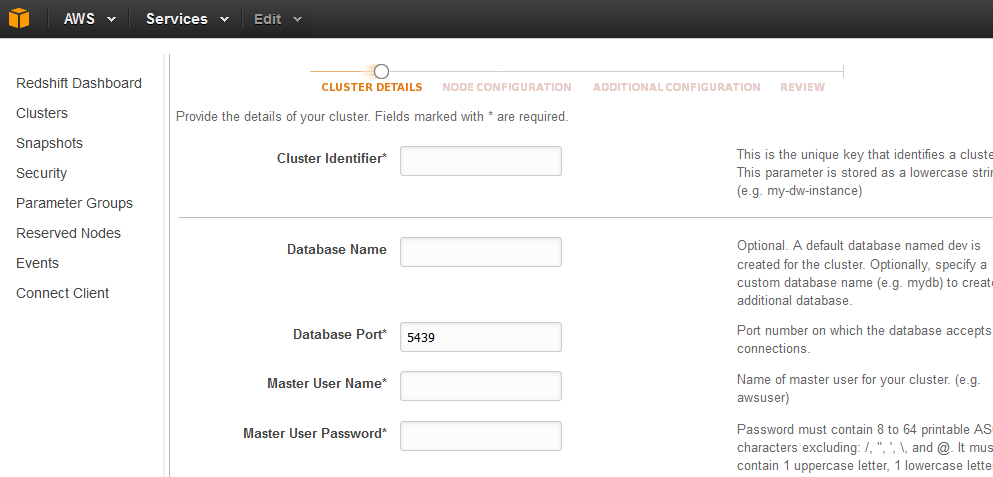
in the above image:
- Cluster Identifier: The unique name you give to your cluster.
- Database Name: The name of your database. Default is : dev. You can give name of your choice.
- Database Port: This is the port on which the database accepts the connection.
- Master Username and Password: The usual credentials of the cluster
2. Node Configurations
Once you are done with the cluster configuration, next step would be to define the nodes. As for this blog, i am using a single node cluster type along with dc1.large node type. Based upon your usage, you can select the node type from a list of different node types to get the memory and storage configurations.
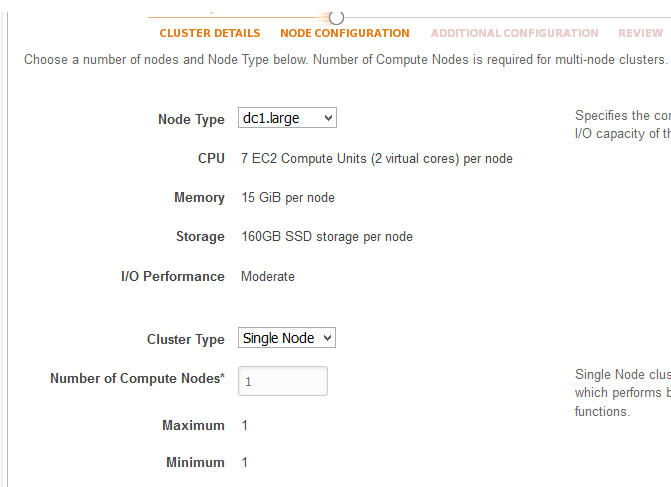
In the above image; the dc1.large node type is selected for a Single Node cluster with one compute nodes.
3. Additional Configurations
In the Additional Configurations section (after you hit “Continue” from step 2), you are asked to give choose VPC(Virtual Private Cloud), security details, encryption database, etc. All the nodes are configured in the VPC by default. AWS will provide a default configuration of the VPC. This default configuration we need to tweak which is explained below.
For now, simple click on CONTINUE and finally you are done with the Single Node Redshift Cluster Configuration. Below is an image of a test cluster that i have created.
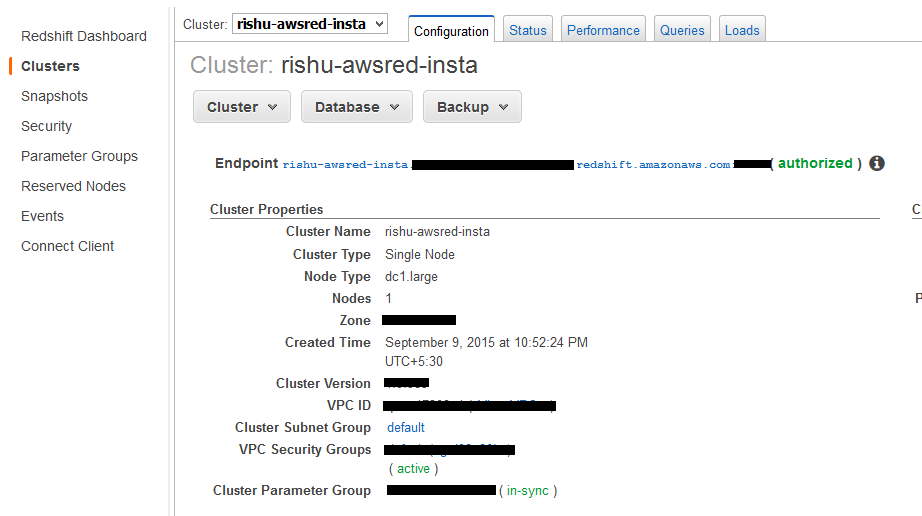

Subscribe to continue reading
Subscribe to get access to the rest of this post and other subscriber-only content.
 Tech Spaghetti
20 responses to “Setting up Amazon Redshift Cluster and accessing using Pentaho Kettle”