

- Introduction
- Impala JDBC Library
- Impala Class Name
- Connection URL
- Configuration Authentication
- Spring Connectivity
- Official Cloudera Reference:
Introduction
Impala is an open source MPP database for Apache Hadoop that provides fast analytics. It is an amazing database currently supported by Cloudera. If you have a Cloudera version of hadoop, you would have used Impala for generating results out of your data via Hue or Impala-Shell. Now for applications asking for JDBC connection, cloudera does provide a JDBC client connectivity feature to build apps. This blog basically aims at bringing all the documentations around Impala connectivity to a single location and explain the steps to connect to impala using JDBC.
Impala JDBC Library
First for connecting to any JDBC client system, you need to download their respective library. So the first step is download the Impala JDBC library. You can find the Impala JAR from Cloudera’s official Connector site. I would recommend downloading the latest version of JAR. I am using CDH Impala JDBC Connector 2.6.4 driver. My CDH version is 5.14.x. So make sure you have the right CDH version before downloading the JAR files.
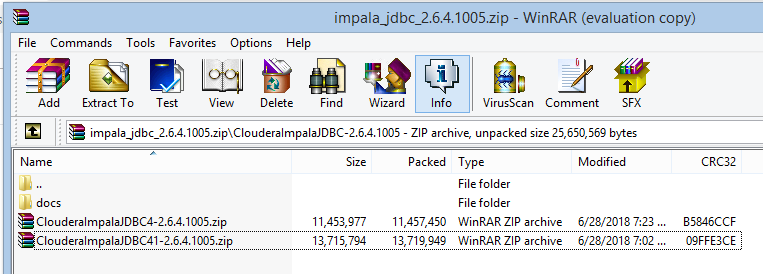
Once you fill in the download form, save the impala jar files to a preferred location. Unzip the zip file. You will notice there are 2 version of Impala Jar, unzip the 41 jdbc version of impala jdbc. In the screenshot you can see the last item in the list.
You will have a uber jar : ImpalaJDBC41.jar
For older versions of Impala that there are more jars that will be required. You need to keep all of them into the required dependencies.
- Bad News for Maven Users: Since Impala is owned by Cloudera, most of their code base is still maintained and supported by Cloudera themselves. Hence their JDBC jars are not freely available in the Central Maven repository. So if you are someone just like me, then stop your search right away in repository. The only way you can have a maven jar is to have your own repository and upload the Impala JDBC jar file to that repository. You can then use the dependency in the respective pom.xml file.
Sample POM.xml:
<dependency>
<groupId>com.cloudera.impala.jdbc</groupId>
<artifactId>ImpalaJDBC41</artifactId>
<version>2.6.4.1005</version>
</dependency>
Note: If you are using Atlasian JIRA, then you can use Artifact repository of JIRA to upload the Impala jar.
Impala Class Name
Well this is straight forward:
Class.forName("com.cloudera.impala.jdbc41.DataSource")
Note: If you are using DataSource to build your connection, then follow the below step to point to the right DataSource class as below:
DataSource ds = new com.cloudera.impala.jdbc41.DataSource();
ds.setURL(<CONNECTION_URL>);
connection = ds.getConnection();
Connection URL
String IMPALA_URL="jdbc:impala://<impala_server>:21050/<database>";
Connection connection = DriverManager.getConnection(IMPALA_URL);
- impala_server: This will be your server details where impala is installed.
- 21050: This is default impala port. It can be different in your case.
- database: The impala database you want to connect.
Configuration Authentication

Subscribe to continue reading
Subscribe to get access to the rest of this post and other subscriber-only content.
 Tech Spaghetti
7 responses to “JDBC Connection to Impala”